BILLNEXA GUIDE • WINDOWS + ANDROID
Offline Billing Software for PC and Android: How Wi-Fi Sync Helps Shops
A practical guide to running a Windows shop counter and Android staff devices with offline-first billing, local Wi-Fi pairing and sensible troubleshooting.
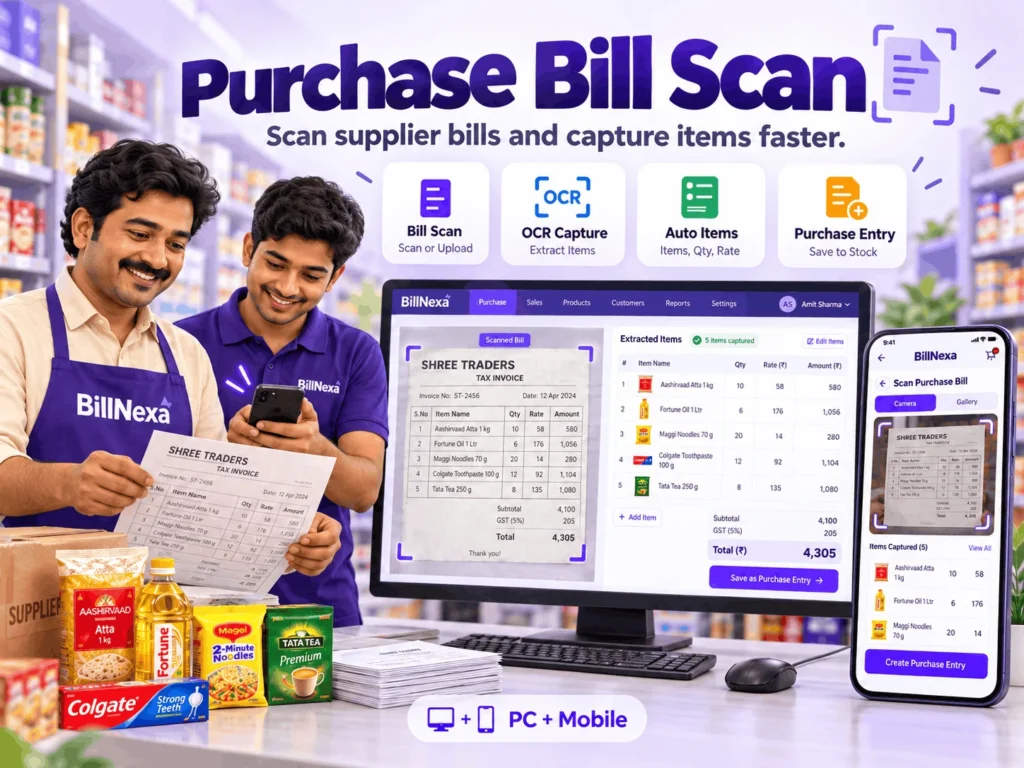
Quick answer: Offline billing and Wi-Fi sync solve different problems. Offline billing keeps supported tasks available on a device; local Wi-Fi sync helps connected devices share supported data over the same shop network—even if broadband internet is unavailable.
Can billing software work without the internet?
Yes, an offline-first billing workflow can allow a shop to continue certain day-to-day operations without a live internet connection. But there is an important distinction: billing on one device without internet is not the same thing as keeping a PC and several phones synchronized.
If your shop uses a Windows counter computer and Android phones, you need to understand three separate activities:
- Local billing: a supported device records sales using its locally available data.
- Local Wi-Fi synchronization: devices exchange supported shop data over the same local network.
- Internet/cloud synchronization: connected features communicate with online services when an internet connection is available.
A local Wi-Fi network can exist even when the router has no broadband service. For example, your computer and staff phone may still connect to the same router and communicate locally. Whether a specific app can sync depends on its configuration and on the network allowing the devices to see each other.
Why this matters for busy Indian shops
Picture a grocery counter with one Windows PC for the owner and an Android phone for a staff member. If the broadband connection drops, stopping all billing would frustrate customers. An offline-first system reduces the dependence of supported local operations on continuous internet access.
In BillNexa, the Windows-and-Android workflow is designed to work together with local Wi-Fi connectivity. That does not mean every feature works without a network: first-time setup, sign-in, licensing, cloud services and device communication have their own requirements.
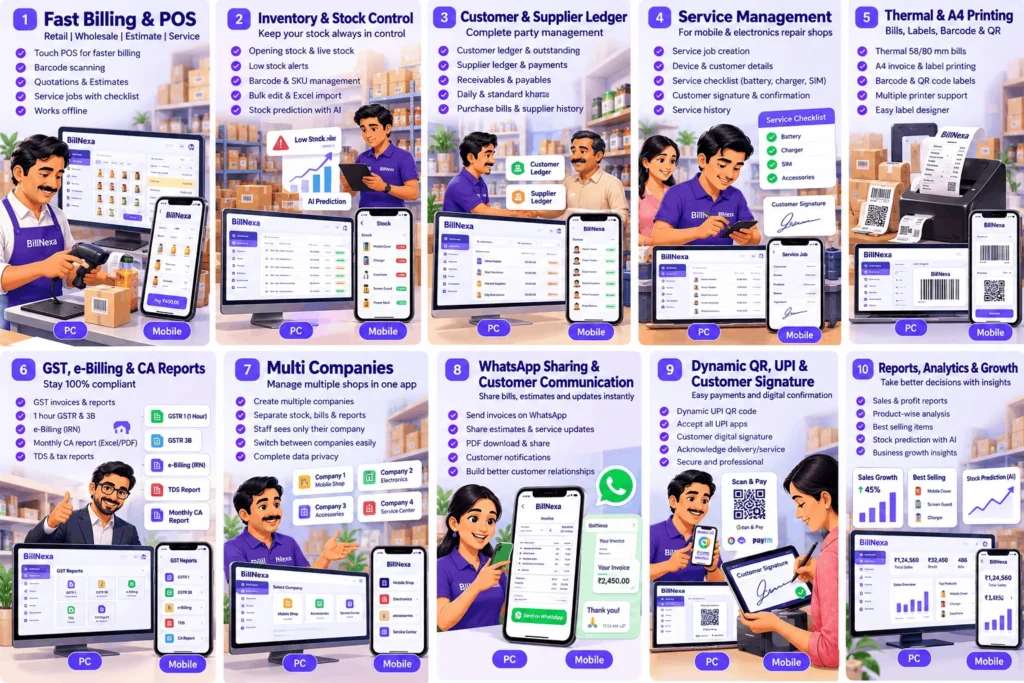
How to set up BillNexa Wi-Fi sync between PC and Android
The exact labels can change between software versions, but the practical workflow is straightforward:
- Prepare the main device. Install and configure BillNexa on the owner’s Windows PC or designated main device, with the correct business and product details.
- Put devices on the same local network. Connect the PC and Android devices to the shop’s Wi-Fi or an appropriately configured shared LAN.
- Enable the supported sync or hub setup. Configure the owner-controlled local device connection and its password or pairing credentials.
- Connect staff devices. Use the provided QR-based device pairing flow and enter the required password or approval details.
- Test a safe sample. Add or update a non-critical sample record and verify that the expected change reaches the connected device.
- Check again after reconnection. If your workflow also uses internet-backed services, verify the supported cloud sync behavior after the internet returns.
Tip: Do this setup before a rush hour. Make one test on a normal day and keep a simple fallback procedure for any connectivity interruption.
What to check when local sync does not work
- Same network? A phone on mobile data or guest Wi-Fi may not be able to reach the shop PC.
- Network isolation? Some routers block communication between connected clients, even when both devices show Wi-Fi.
- Is the main device available? A computer that is sleeping, disconnected or switched off cannot provide its expected local service.
- Correct pairing? Review the password, QR details and authorized device settings.
- Firewall or permissions? A Windows firewall or local permission can block the connection.
- Are the app versions supported? Check that both devices are using compatible versions and the intended synchronization mode.
For reliable daily use, document which machine is the hub, where staff should connect, and how to recognize a sync issue before starting new bills.
Security, staff access and multi-company data
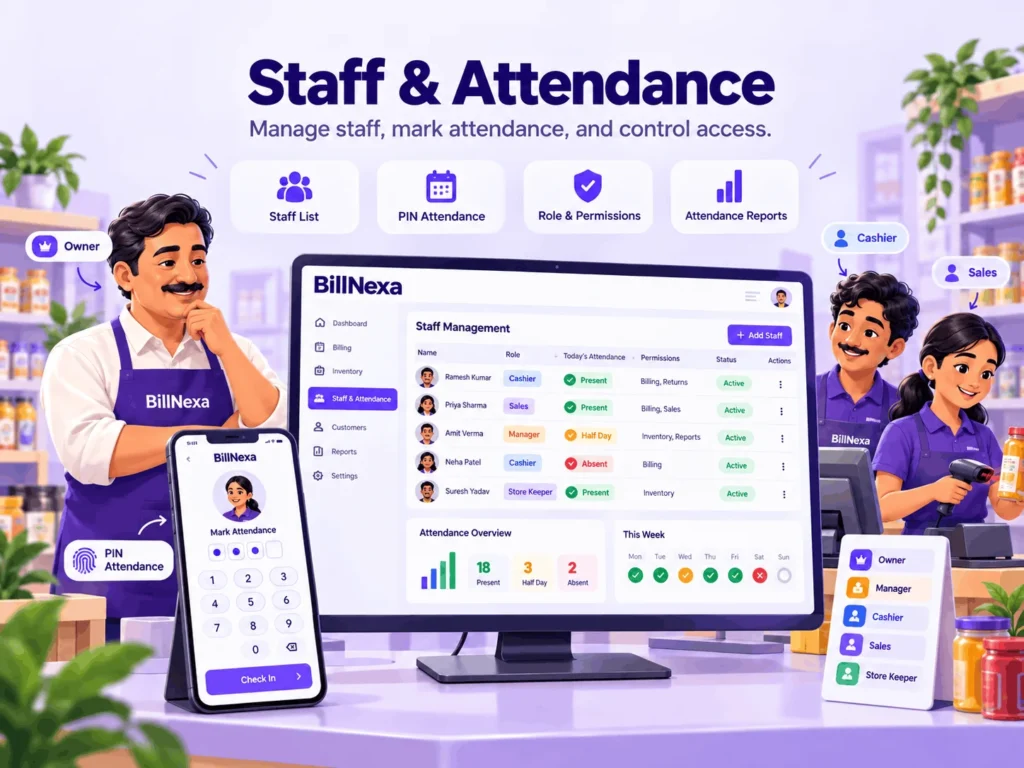
Synchronization should not be confused with unrestricted access. When several employees use a billing system, roles and company permissions matter as much as connectivity. Give each person the access they require for their own work and review staff activity as needed.
BillNexa supports staff-related permissions and business management workflows depending on the configuration and subscription. Test company separation and authorized staff visibility with non-sensitive sample data before deploying at multiple counters or businesses.
What about printing when the internet is down?
Receipt printing can also be a local task. Compatible Android Bluetooth Classic printers or supported Windows USB RAW and network printers may operate without access to an online service, provided the billing app and printer connection are set up correctly. Printer protocol and size settings still matter: test the exact receipt or label you plan to print.
Which shop setup is right for you?
One small counter: Start with a single device, accurate products, a compatible printer and reliable invoice records.
Owner PC plus one staff phone: Explore local Wi-Fi device pairing and clear staff permissions. Verify what happens during both a router outage and an internet-only outage; these are different situations.
Multiple staff or businesses: Document network roles, access permissions, device assignment and the available sync behavior before expanding. A little planning is better than guessing under pressure.
For a broader comparison of billing, stock and tax-invoice features, read our guide to GST billing software for small Indian shops. You can also explore the BillNexa Wi-Fi Sync section.
Frequently asked questions about offline billing and Wi-Fi sync
Give your counter more flexibility
Before switching your whole shop, try a small controlled test: connect your PC and Android device, verify one sample update and check your printer. Build confidence in the workflow, then introduce it to staff.
Offline and synchronization capabilities depend on setup, feature support, network conditions and current plan terms.